How to Remove Green Screen in VN: Easy Step-by-Step Guide
In today’s digital content world, green screen videos are a powerful tool for creators. They allow you to replace backgrounds, add dynamic effects, and create professional-looking content without a complex setup. If you’re wondering how to remove green screen in VN, you’re in the right place. VN Video Editor is a free, user-friendly app available on both Android and iOS that makes green screen removal simple, even for beginners.
In this guide, we’ll cover everything from removing green screen backgrounds, using VN’s built-in tools, alternatives like CapCut, and even comparisons to advanced editors like Adobe Premiere and Camtasia. By the end, you’ll know how to create polished, professional videos using VN Video Editor.
Why Use a Green Screen?
Green screens, also known as chroma key backgrounds, allow creators to replace or manipulate the background of their videos. Benefits include:
- Professional look – Replace boring backgrounds with cinematic scenes.
- Creative flexibility – Add animations, effects, or dynamic backdrops.
- Privacy – Hide your actual surroundings.
Whether you’re creating content for YouTube, TikTok, or Instagram, knowing how to remove green screen in VN app is essential.
Getting Started with VN Video Editor
Before removing green screens, ensure you have the VN Video Editor installed:
- Android users: Download from Google Play Store.
- iOS users: Download from the App Store.
VN supports multi-track editing, green screen removal, effects, transitions, and more. Once installed, create a new project and import your green screen video.
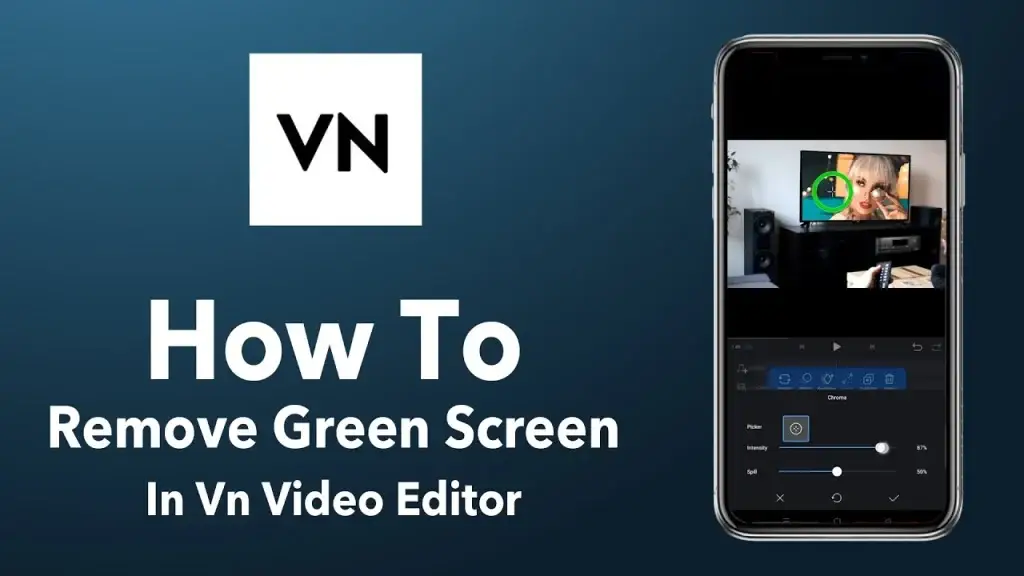
Step 1: How to Remove Green Screen in VN Video Editor
Follow these steps to remove a green screen in VN:
- Open your project in VN Video Editor.
- Import the video with a green screen background.
- Tap the video clip to access Edit Options.
- Look for Chroma Key or Green Screen.
- Select the green color as the background to remove.
- Adjust the tolerance and smoothness for a natural look.
- Preview the effect to ensure the background is removed completely.
By mastering these steps, you’ll know exactly how to remove green screen in VN editor.
Step 2: How to Remove Green Screen in VN Android
For Android users, the process is nearly identical with a few interface differences:
- Open VN app on Android and create a new project.
- Import your green screen video.
- Tap Effects → Chroma Key.
- Pick the green color and adjust threshold to fine-tune.
- Apply the effect and preview.
This workflow ensures smooth results when removing green screen in VN Android.
Step 3: How to Use Green Screen in VN
VN not only allows you to remove green screens, but also to add green screen clips for layered effects. Here’s how:
- Import your main video to the timeline.
- Tap Add Layer → Video and select the clip with green screen.
- Enable Chroma Key on the overlay video.
- Adjust color selection and threshold.
- Position the overlay where needed.
Using this method, you can create dynamic compositions and professional green screen videos.
Tips for Removing Green Screen Effectively
To achieve the best results, follow these tips:
- Use a uniform green background – Wrinkles or shadows make removal harder.
- Good lighting – Even lighting reduces leftover green edges.
- High-quality video – Low resolution can make edges jagged.
- Adjust smoothness and tolerance – VN allows fine-tuning for cleaner results.
- Combine with background videos or images – Make your content more dynamic.
These tips are essential whether you’re learning how to remove green screen on video or replacing backgrounds creatively.
Step 4: How to Remove Green Background in VN
Sometimes, you may want to remove green backgrounds from multiple videos for consistency. VN makes it easy:
- Import all clips.
- Apply Chroma Key individually or duplicate settings for batch videos.
- Adjust color tolerance and smoothness.
- Export once satisfied.
This method is perfect for creators who want to remove green screen from video in VN efficiently.
Step 5: Using Alternatives for Green Screen Removal
While VN is excellent, other tools can complement your workflow:
1. CapCut
- Free and user-friendly.
- Offers green screen remover, effects, and transitions.
- Perfect for social media content.
2. Adobe Premiere
- Professional-level editing.
- Advanced Chroma Key settings.
- Ideal for YouTubers or filmmakers.
3. Camtasia
- Great for tutorial and screen recording videos.
- Allows green screen removal and overlay effects.
These alternatives can be used if VN lacks certain advanced features. Searching how to remove green screen in Adobe Premiere or Camtasia will give additional options.
Step 6: Common Mistakes to Avoid
Even with VN, beginners make these mistakes:
- Uneven green backgrounds – Causes edges to remain visible.
- Poor lighting – Creates shadows that are hard to remove.
- Over-adjusting tolerance – Can remove parts of the subject.
- Low-resolution videos – Leads to jagged or blurry edges.
Avoiding these mistakes ensures a clean green screen video every time.
Step 7: Exporting Your Green Screen Video
After removing the green screen:
- Tap Export in VN.
- Select resolution and frame rate.
- Save the video to your device.
Make sure to preview before exporting to confirm all green areas are removed. Exported videos are ready for social media sharing or professional use.
Frequently Asked Questions
Q1: Can I remove green screen in VN after recording?
Yes! VN allows post-recording removal for existing videos.
Q2: Does VN work on Android and iOS?
Yes, VN is fully compatible with both platforms.
Q3: Can I use VN with CapCut or Premiere?
Absolutely! VN can handle initial edits, then you can fine-tune in CapCut, Adobe Premiere, or Camtasia.
Q4: Is VN free?
Yes, VN is free with no watermarks, making it perfect for creators at any level.
Final Thoughts
Mastering how to remove green screen in VN empowers you to create professional videos with dynamic backgrounds and effects. Whether you’re using VN Video Editor on Android, the VN app, or VN editor on iOS, the steps are simple and efficient. Combining VN with alternatives like CapCut, Adobe Premiere, or Camtasia expands your editing capabilities, allowing for polished, cinematic results.
Start practicing today and turn your green screen clips into dynamic, professional videos ready for social media, YouTube, or personal projects. With VN, removing green screen backgrounds has never been easier or more accessible for creators.