How To Add Text In VN: Video Editor Text Tutorial 2025
Adding text to videos is one of the most essential skills for content creators, social media enthusiasts, and marketers. With VN Video Editor, this task becomes easy, even for beginners. Whether you want to create moving text, curved text, or place text behind an image, VN provides all the tools you need. This comprehensive How To Add Text In VN tutorial for 2025 will guide you step by step, covering mobile and PC versions, including VN Video Editor Mac.
What is VN Video Editor?
VN Video Editor is a powerful, user-friendly video editing app available for mobile devices and Mac. It allows creators to edit videos, add music, transitions, effects, and of course, text.
Key features:
- Multi-layer editing for video, audio, and text.
- How to add text in VN app: A simple process accessible to beginners.
- Supports HD exports without watermarks.
- Lightweight and intuitive interface.
VN is perfect for social media content, tutorials, gaming videos, and professional-looking videos without requiring complex software.
Why Adding Text is Important
Adding text enhances videos by:
- Providing context: Explain scenes or provide instructions.
- Highlighting key points: Important for marketing videos or tutorials.
- Engaging viewers: Moving or animated text keeps attention.
- Creative storytelling: Curved text or text behind images improves aesthetics.
Step-by-Step Guide: How To Add Text In VN Video Editor
Here’s a detailed, easy-to-follow guide on how to add text in VN Video Editor for both mobile and Mac.
1. Open VN Video Editor
- Launch the VN app on your device or VN Video Editor Mac.
- Tap on “New Project” to start editing.
- Import your video clips or images.
2. Adding Basic Text
Steps to add text in VN app or editor:
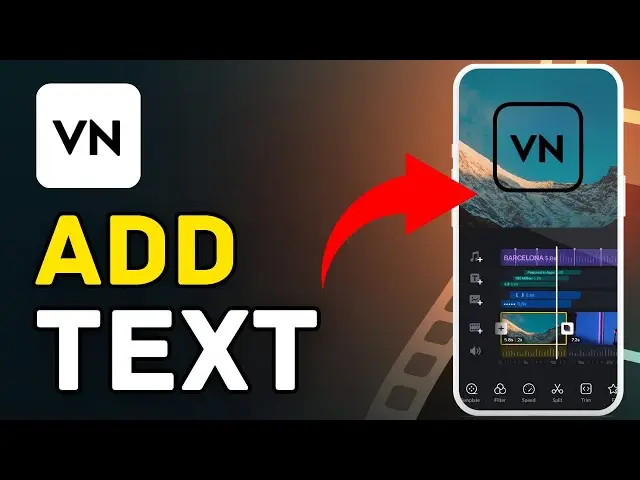
- Tap on the Text icon in the editing toolbar.
- Select “Add Text”.
- Type your desired content.
- Adjust font style, size, color, and alignment.
This method works for how to add text in video in VN app or mobile editor.
3. Adding Moving Text
Animated or moving text makes your videos more dynamic. Here’s how:
- Select the text layer you added.
- Tap “Animation”.
- Choose “In”, “Out”, or “Loop” animations.
- Adjust the duration and position on the timeline.
With this, you can easily create how to add moving text in VN Video Editor tutorials or social media posts.
4. Adding Curved Text
Curved text adds creativity, perfect for intros or titles:
- Tap the text layer and select “Effect”.
- Choose “Curve Text” or manually adjust the curvature.
- Modify the font size and position to fit your video.
This is especially useful for banners or highlight text in VN videos.
5. Adding Text Behind an Image
Sometimes you want the text to appear behind an image or layer for professional effects:
- Add your image layer above the video.
- Select the text layer and move it below the image layer in the timeline.
- Adjust opacity, size, and position to achieve the desired look.
This process demonstrates how to add text behind an image in VN and makes your videos look cinematic.
6. Editing Text Properties
Once your text is added, VN provides a variety of editing tools:
- Font style: Choose from hundreds of available fonts.
- Color & gradient: Highlight text with solid colors or gradient effects.
- Shadow & outline: Improve visibility against complex backgrounds.
- Alignment: Center, left, or right alignment options.
- Duration & timing: Control when text appears and disappears in your video.
Using these tools ensures your how to add text in VN video editor Mac or mobile projects look professional.
7. Exporting Your Video
After adding and adjusting text:
- Tap Export.
- Select resolution and frame rate.
- Ensure “No Watermark” option is selected (if using VN Mod or premium version).
- Save or share directly to social media platforms.
This ensures your how to add text in VN video project is ready for viewers.
Tips for Adding Text Effectively
- Keep it readable: Avoid fonts that are too fancy or small.
- Contrast matters: Use colors that stand out against the background.
- Use motion sparingly: Too many animations can distract viewers
- Timing is key: Sync text appearance with video narration or music beats.
- Combine effects: Use curved, moving, or behind-image text for engaging visuals.
VN Text Features You Must Try
- Text Templates: Pre-designed text animations for quick edits.
- Curve Text in VN: Ideal for circular logos or creative intros.
- Text Behind Image: Adds depth and professional look to videos.
- Moving Text in VN Video Editor: Boosts engagement on social media.
These features make VN a versatile tool for both casual and professional content creators.
Common Questions
Q1: How to add text in VN Video Editor Mac?
Open your project, select Text, type your content, and adjust font, color, and animation. The process is similar to mobile.
Q2: Can I add moving text in VN?
Yes, use the Animation tab on the text layer to create moving, in/out, or looping text.
Q3: How to add curved text in VN?
Select the text layer, choose Effect > Curve, and adjust curvature to fit your design.
Q4: Can text appear behind images in VN?
Yes, place the text layer below the image in the timeline and adjust opacity for cinematic effects.
VN Text Editing Use Cases
- Social Media Posts: Add captions, titles, or hashtags.
- Tutorials: Highlight steps using text overlays.
- Gaming Videos: Add moving or curved text to introduce players or scores.
- Marketing Videos: Use text behind images for professional advertisements.
- Poetry or Storytelling Videos: Combine text and visuals for engaging content.
Conclusion
Learning how to add text in VN unlocks the full potential of your video editing projects. Whether you are using VN Video Editor Mac, mobile app, or creating moving text, curved text, or text behind images, VN provides intuitive tools to make your videos professional and engaging.
By following this 2025 VN Text Tutorial, beginners and pros alike can create content that stands out on YouTube, TikTok, Instagram, or other social media platforms. The combination of VN video editor features and creative text usage ensures your videos capture attention and communicate your message effectively.